MotoScore™'s Garmin-Compatible GPX is tuned for Garmin motorcycle GPS units so the device follows the line you drew instead of helpfully rerouting you onto the nearest interstate. This guide walks through the full export-and-import flow, from MotoScore to your Zumo's screen.
Step 1 — Export from MotoScore
Draw or load your route in the planner. In this example we'll use the Blue Ridge Parkway demo route — 23.2 miles from Fancy Gap to Mabry Mill, Virginia.
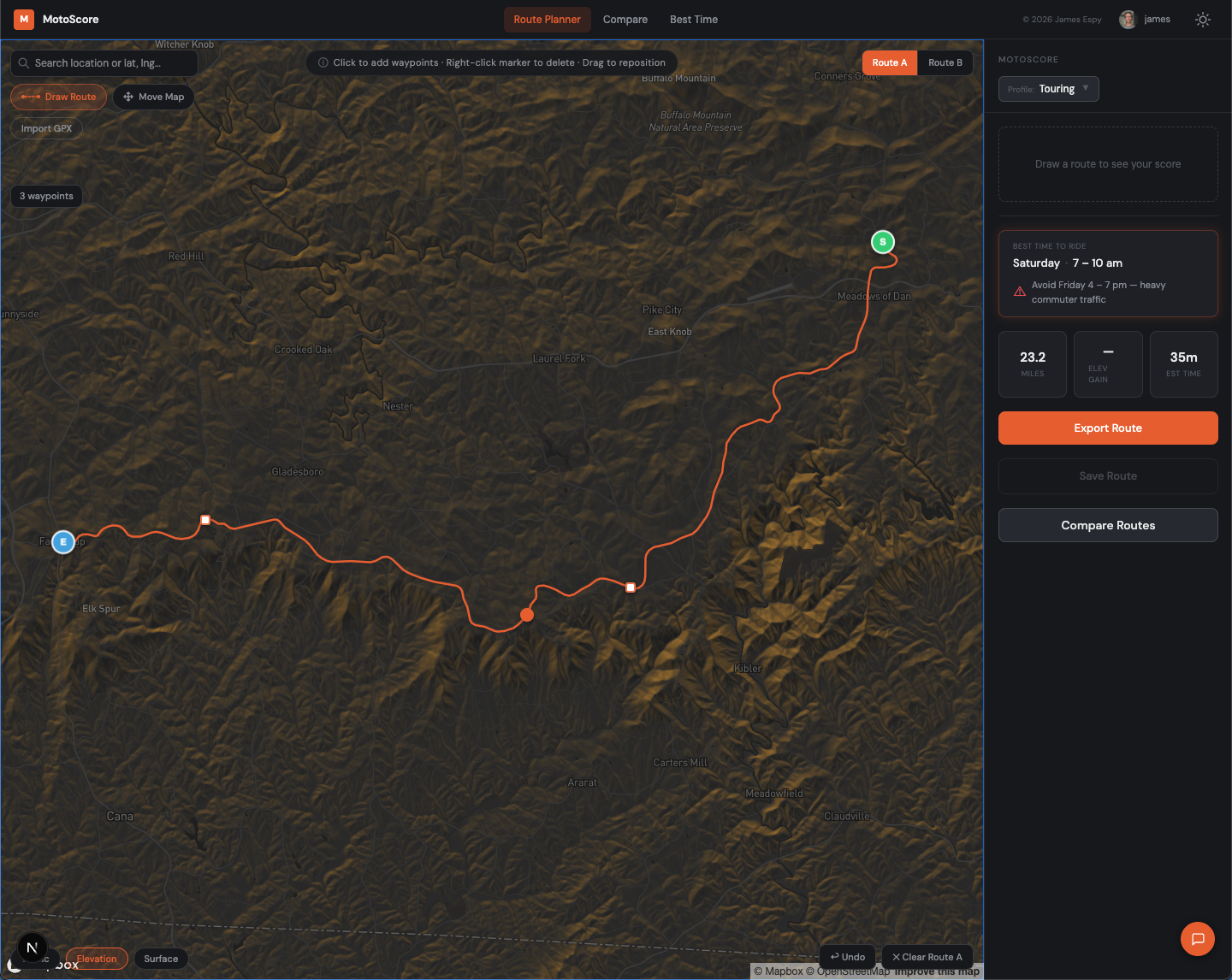
Click Export Route in the sidebar. The export modal offers three options: Standard GPX, Garmin-Compatible GPX, and Open in Google Maps.
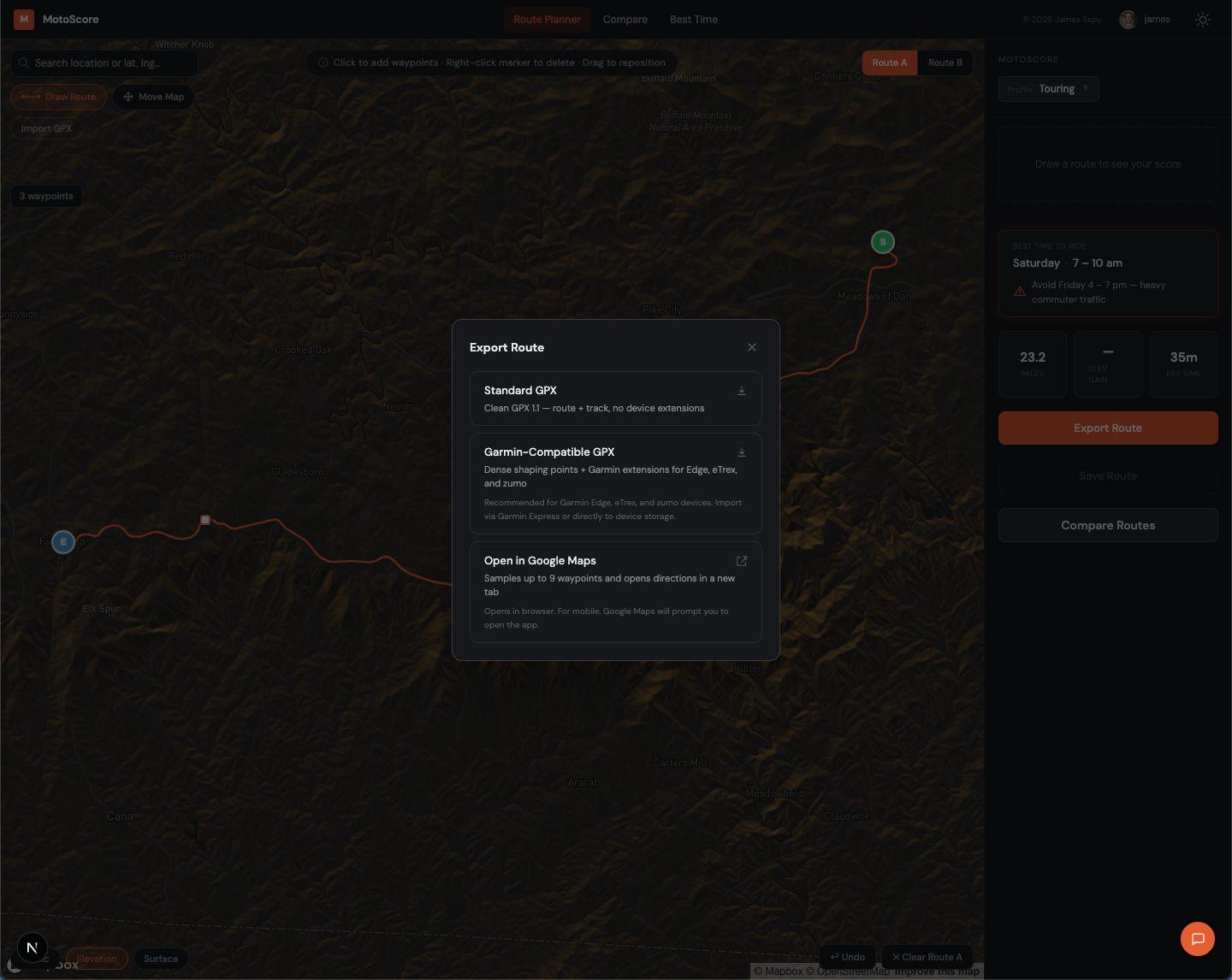
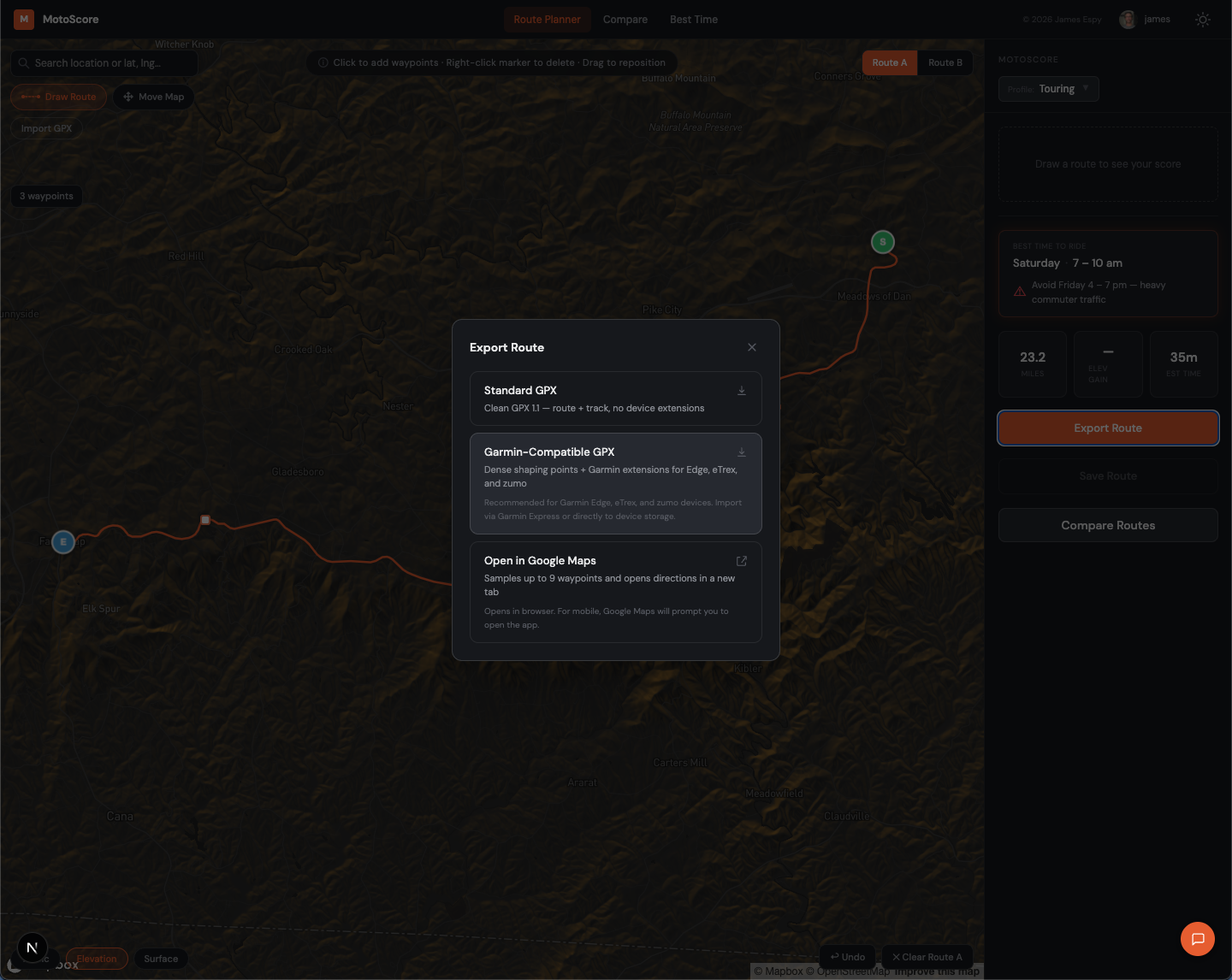
Choose Garmin-Compatible GPX. This variant is tuned for Garmin motorcycle GPS units — the file has been tested on the Zumo XT2 and is expected to work on other Garmin motorcycle GPS units like the XT3, Tread, and zūmo 396.
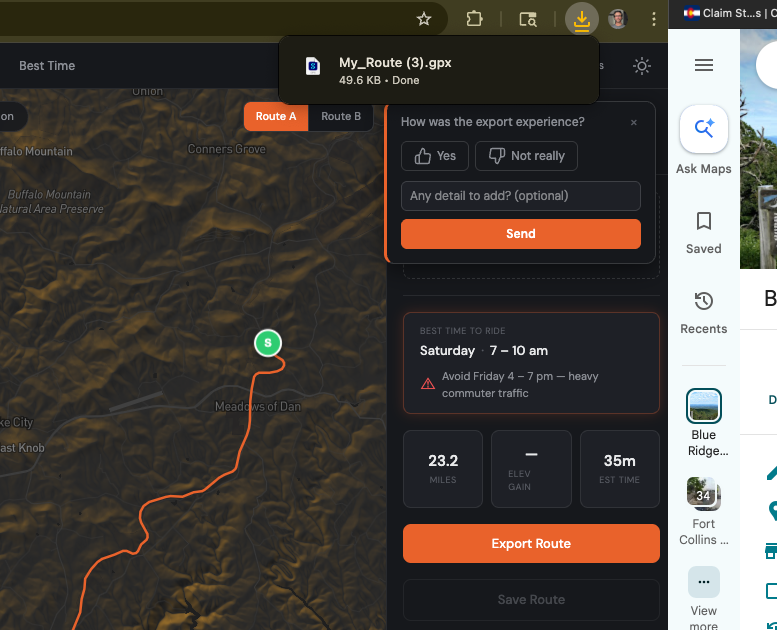
The file downloads to your device.
Step 2 — Import into Garmin Explore
Open Garmin Explore in a browser and sign in with your Garmin account. Click the import button in the toolbar to open the Import Data modal.
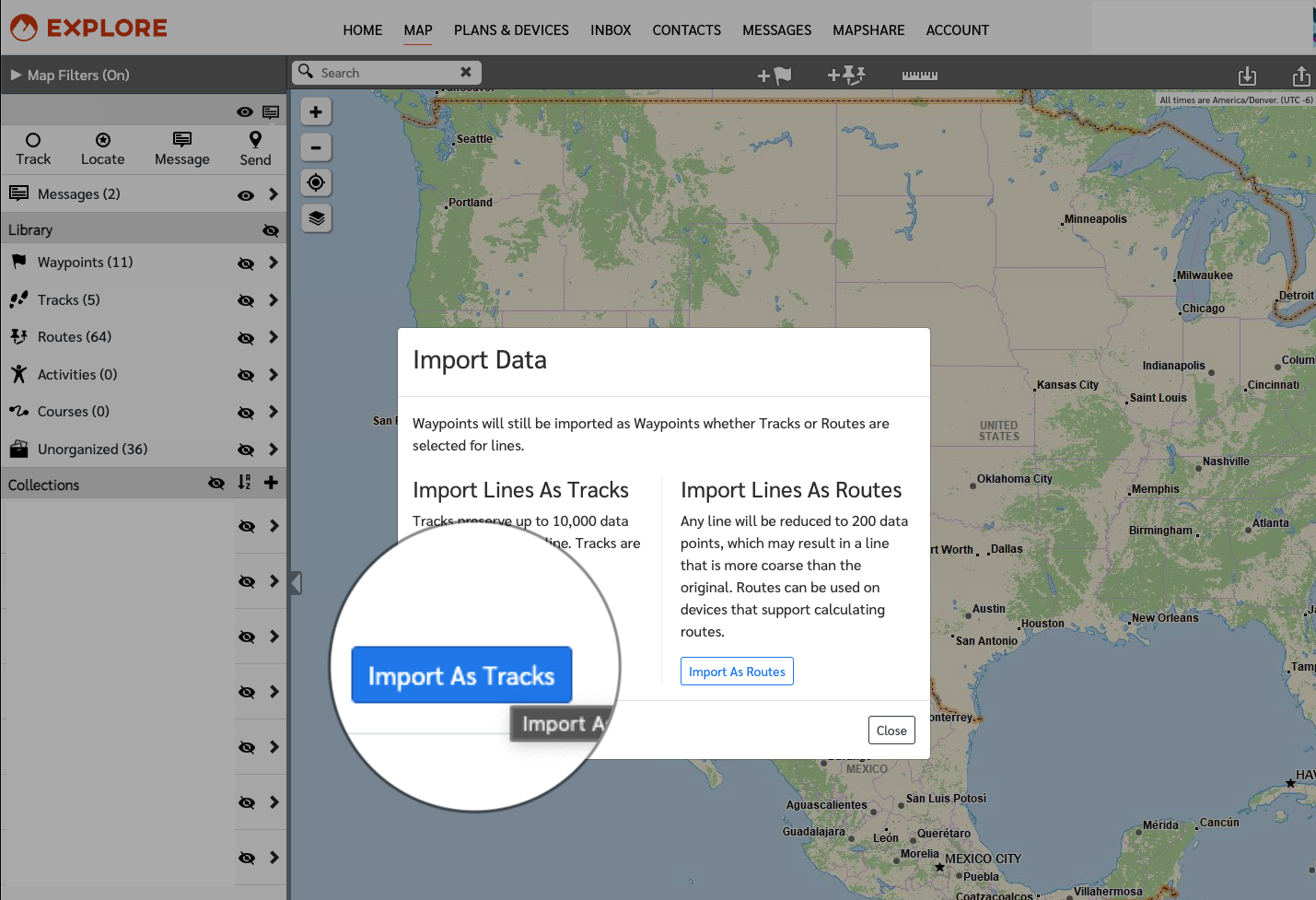
Important — choose "Import As Tracks," not "Import As Routes." Importing as a Route substantially reduces the point count, which causes the Zumo to recompute the route along its own preferred path. Importing as a Track preserves the geometry MotoScore sent and keeps the Zumo on the line you drew.
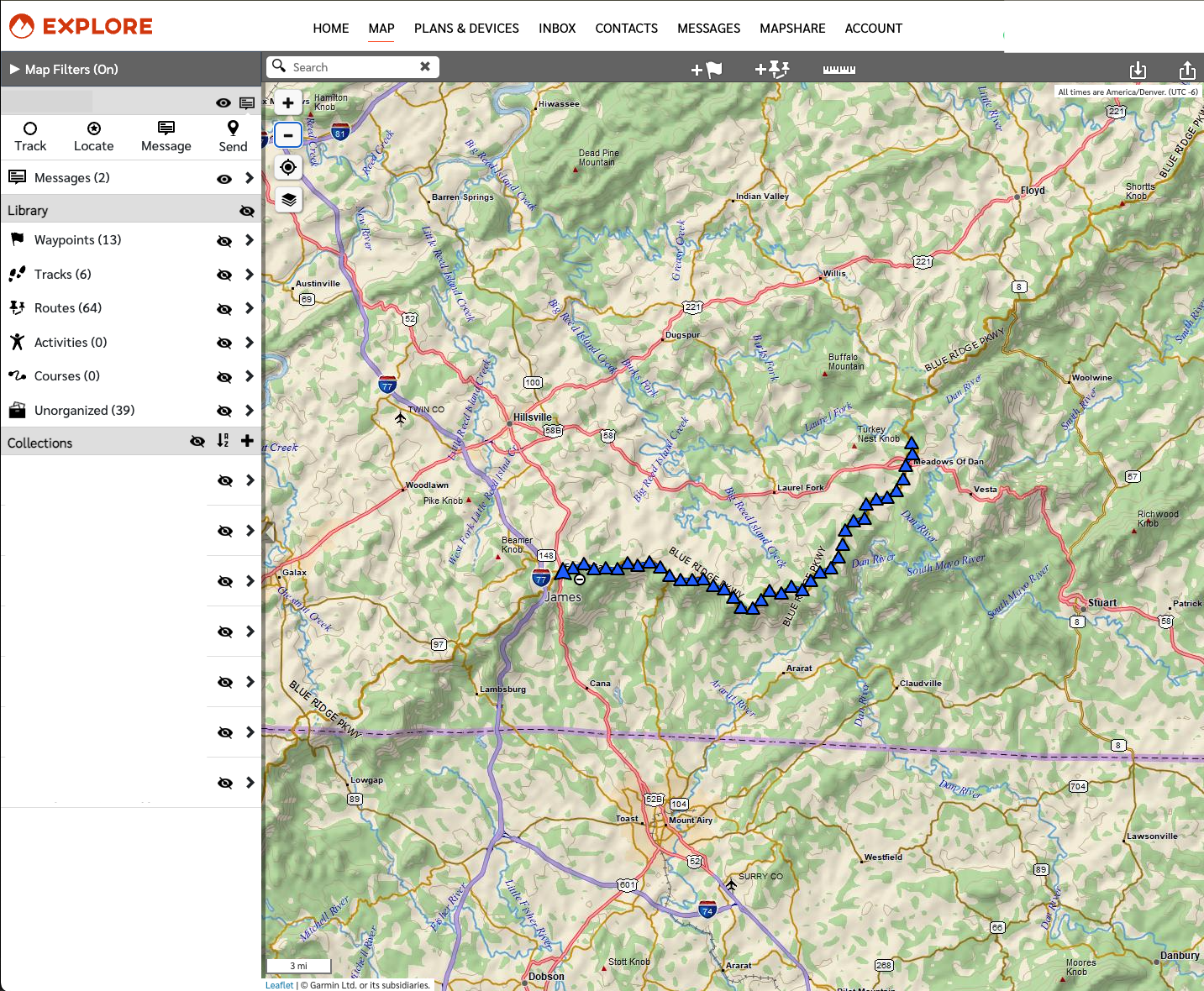
Select the GPX file you just downloaded. Once the import finishes, the track appears in your Library under Tracks, and you'll see it drawn on the map.
Step 3 — Send to your Zumo XT2
You have two ways to get the track onto the device:
- USB: plug the Zumo into your computer. It mounts as a drive called
Garmin— Garmin Explore's desktop sync will push the track onto it. Safely eject when the sync completes. - Wireless: if your Zumo is paired with Garmin Express (or the Explore mobile app) over Wi-Fi, the track syncs automatically the next time the device checks in. This takes a minute or two; powering the Zumo on with Wi-Fi in range is enough.
In Garmin Explore, use Send to Device on the track to queue it for sync. On the Zumo, open the track from the library and start navigation.
Before you leave home, verify the route on the device screen — zoom in on two or three turns and confirm the line follows the roads you actually drew. If anything looks off, it's much easier to fix in the driveway than at the first fork.
If the device still tries to reroute
If the Zumo still tries to reroute you once you're underway, double-check that you imported the GPX as a Track (not a Route) in Garmin Explore, and that you're navigating the Track on the device — not a recalculated Route derived from it.